
How are your paid, email, and social campaigns really performing?
Let’s learn how to set up UTM parameters and use them to see exactly which campaigns are driving your traffic and conversions.
UTMs in a nutshell
Google acquired Urchin in 2005 and used its Urchin Tracking Module (UTM) as the backbone of Google Analytics.
UTM tags help explain where traffic comes from online:
- UTM Source – Who sent the traffic
- UTM Medium – How the traffic was sent
- UTM Campaign – Which campaign (if any) was used – Use with Source & Medium
- UTM Term – Which keyword (if applicable) was used
- UTM Content – Which creative (if applicable) was used
New UTMs for GA4 are:
- UTM ID – The campaign ID used for matching purposes
- UTM Source Platform – Which marketing platform (if applicable) was used
- UTM Creative Format – Collected but not currently in GA4
- UTM Marketing Tactic – Collected but not currently in GA4
UTM codes, often written in lowercase, are added as standardised URL parameters after the URL path, such as:
https://example.com/page.html?utm_source=Hallam&utm_medium=referral&utm_campaign=Latest%20Campaign
Matching UTMs within Google Analytics 4
When a user is sent from one destination to another online, UTM parameters are captured by Google Analytics on the landing page.
GA4 will mainly look at the UTM source and UTM medium, then match them down a long list of rules to pick out the right description for each channel. Here’s a simplified, boiled-down version:
| Channel | Rule |
|---|---|
| Medium or source contains email, e-mail, e_mail, or e mail | |
| Paid Search | Source aligns with a recognised search engine AND medium equals cpc, ppc, retargeting, or paid search |
| Paid Social | Source aligns with a recognised social platform AND medium equals cpc, ppc, retargeting, or paid social |
| Organic Social | Source aligns with a recognised social platform, OR medium equals social, social-media, sm, etc. |
| Display | Medium equals display, banner, expandable, interstitial, or cpm |
| Affiliates | Medium equals affiliate |
| Referral | Medium equals referral, app, or link |
| Organic Search | Source aligns with a recognised search engine name, OR medium equals organic |
| AI Assistant | Referrer aligns with an identified chatbot (introduced in 2026) |
| Unassigned | Default category when no conditions are satisfied |
| Direct or (none) | All other traffic |
Using UTMs for campaign names
Unlike the set names for source and medium, pretty much anything can be added to the UTM Campaign field (utm_campaign), which then appears within Google Analytics as a session-based campaign name.
When you send traffic from anywhere that isn’t your website towards your website, you can add the UTM campaign parameter to the end of your URL with any campaign name you wish to tag it with.
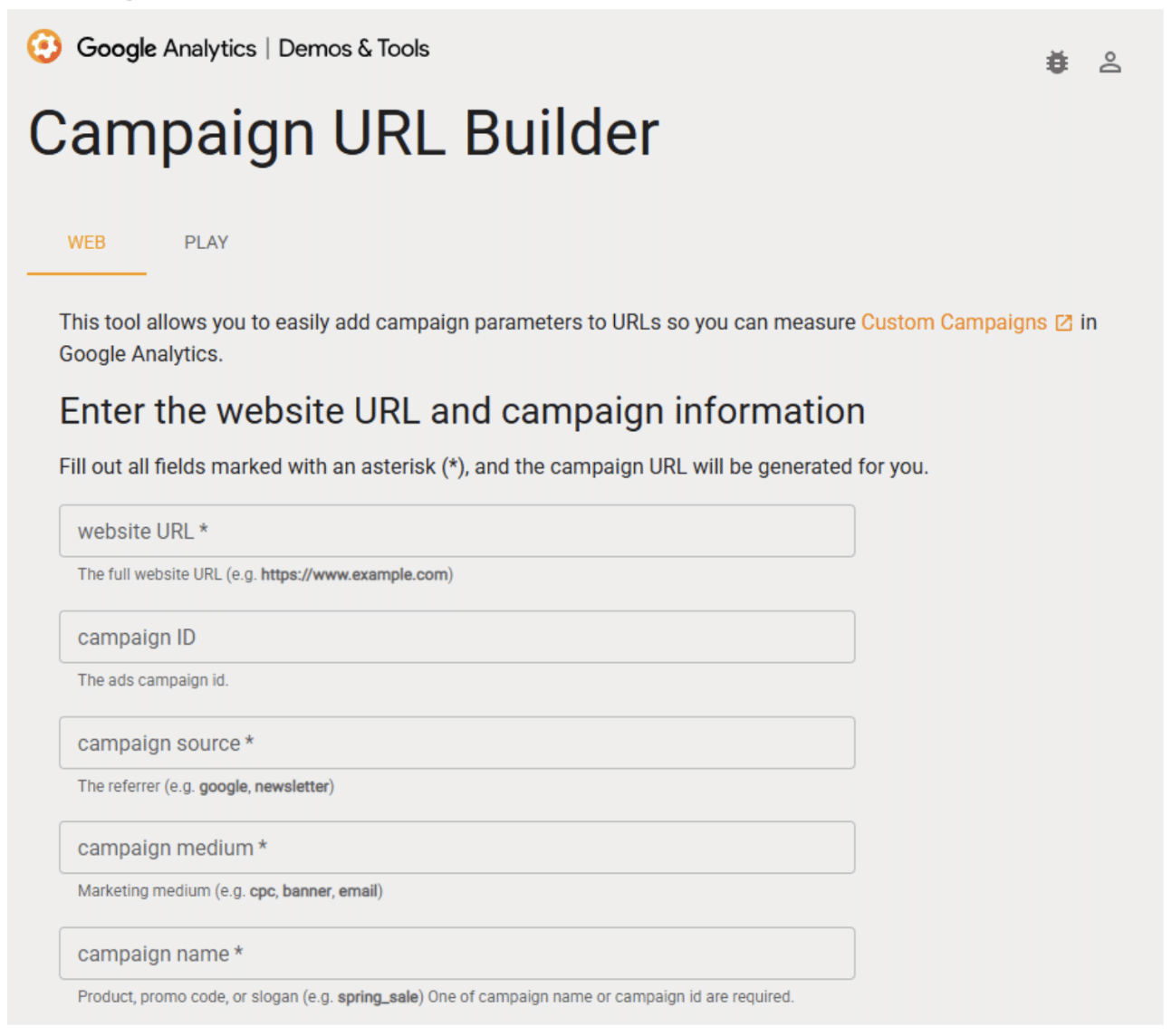
Google has a handy Campaign URL Builder tool which makes it easy to add UTM Campaign data (without messing up the URL!), or you can just ask a basic LLM to make one for you.
The campaign UTMs can be applied to:
- Email campaigns – “summer-holiday-promo-2028” or “yearly-reminder-email” for example
- Social campaigns – “free-giveaway-new-year-comp-28” or “flash-promo-sale-may-2028”
- Social messaging platforms – “10-off-prev-buyers-message” or “personal-pizza-offer” for example
But before you set out making lots of UTMs, check that auto-tagging isn’t automatically applied to your target URLs…
Auto-tagging UTMs and custom tracking parameters
Some platforms will automatically add UTM tags to your URLs to ensure maximum attribution, so it’s important to check if they are on or off before potentially applying them twice!
Email and social sharing tools will encourage you to add in the UTM source, medium, and campaign on each post, which are automatically added to all links; make a habit of using it to see which email or message drives engagement.
Ad platforms work a little differently. Rather than UTMs, most pass click information through their own click ID. Google Ads does this by default, adding a “GCLID” parameter to every ad click, for example: example.com/paid-landing-page?gclid=1234567890XYZ
Google Ads integrates very nicely with Google Analytics, so there is no need to turn them on unless additional tracking technologies need to pick up the campaign names, such as HubSpot or Salesforce CRMs.
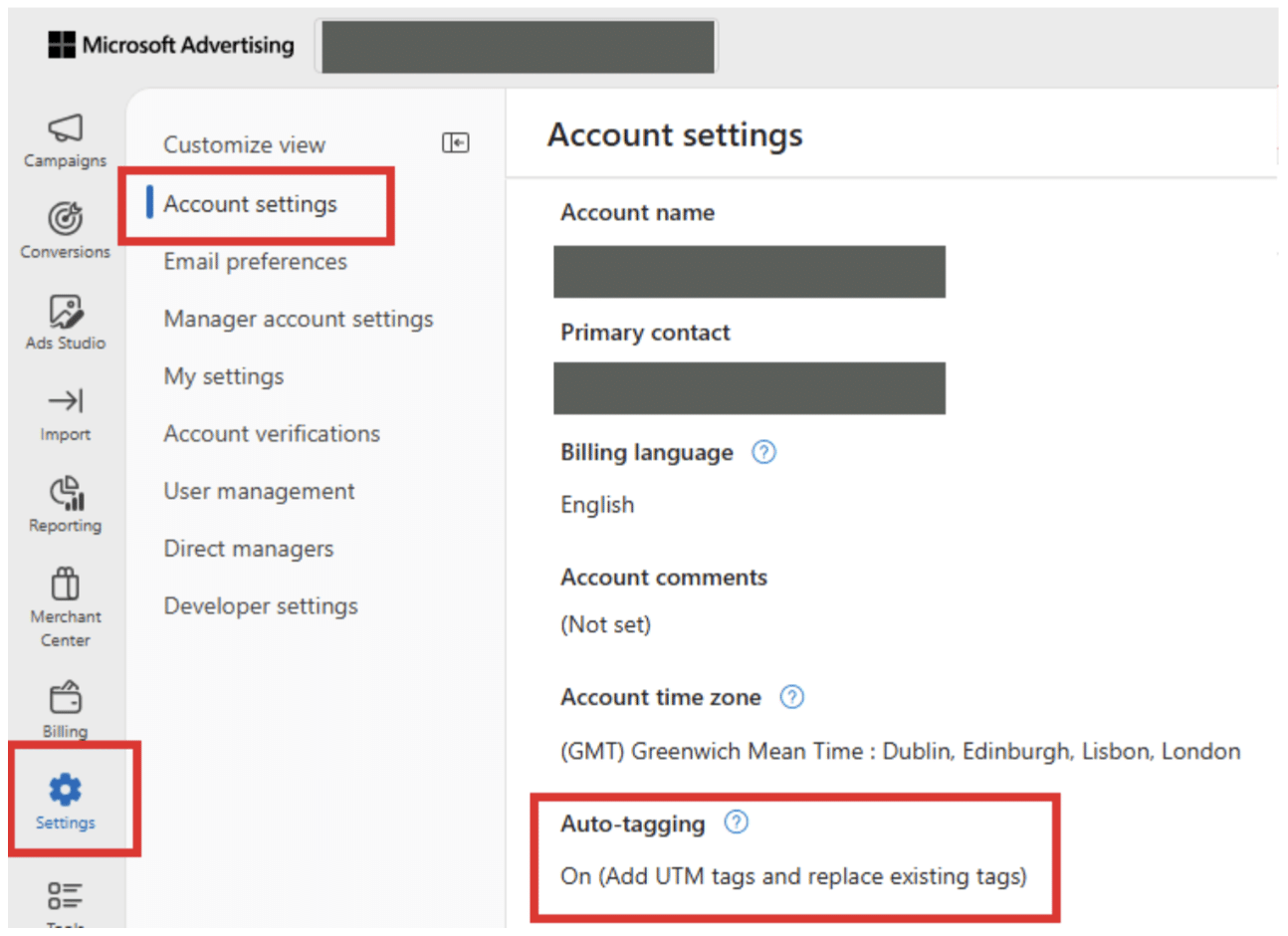
However, other platforms such as Microsoft (Bing) Ads will lose important information such as the campaign name in Google Analytics if auto-tagging isn’t turned on, so make sure to turn it on for the whole account right away:
The many ways to mess up UTMs
Here are some of the mistakes you can make whilst applying UTM parameters:
- Adding UTMs to internal links – It’s tempting to tag your own banners and buttons to see which ones get clicked, but UTMs are only meant for traffic arriving from outside your site. Clicking an internally tagged link won’t change where GA4 says the visit came from, but any conversions after that click get credited to your own internal “campaign” instead of the email, ad or post that actually brought the visitor in
- Using non-friendly URL parameters – Several characters that might be within a campaign name do not belong in URL parameters, as they create broken links, such as ampersands (&) and spaces. There are special character codes to write a space in a URL, for example, which is “%20”, but if in doubt, use a URL builder to make sure it’s all correct
- Missing out source and/or medium – If you add the UTM Source, but forget the UTM Medium or vice-versa, then this may not fall into one of Google’s default channel groupings, causing incorrect reporting
- Additional whitespace – Accidentally adding a space after, say, a campaign name, can create broken URL parameters. Again, use a robust URL builder to make sure all human error is accounted for
- Non-standard naming conventions – Capital letters count as unique names, so be consistent with campaign names, or you’ll end up with segmented reports with names like: “New Year Promo”, “new-year-promo”, “New_Year_Promo”, etc.
Seeing UTM campaign data in Google Analytics
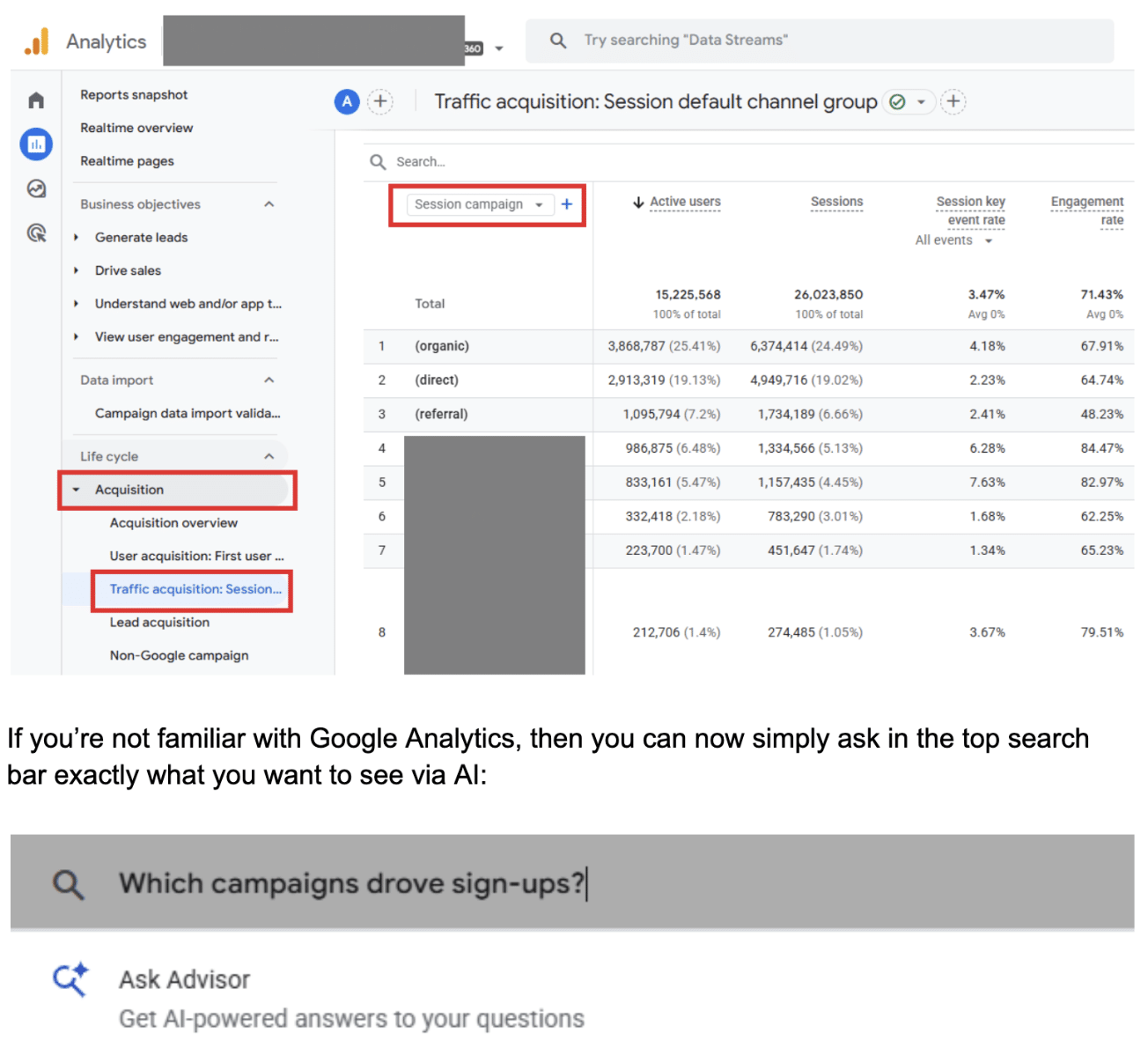
Finally, you can get to the exciting part where you can see campaign performance in Google Analytics 4 by either selecting “session campaign” in a report such as the Traffic Acquisition report, or within a custom report:
If you’re looking for support with tracking your marketing activity, get in touch today.